PlentyOne
Connect your PlentyONE ERP to armincx to view order data directly in your inbox and use it in workflow automations.
Setting up the integration
1. Go to Integrations
Click your name in the bottom-left corner and select Integrations.
2. Select PlentyONE
Find PlentyONE in the list of available integrations and click on it.
3. Add your account
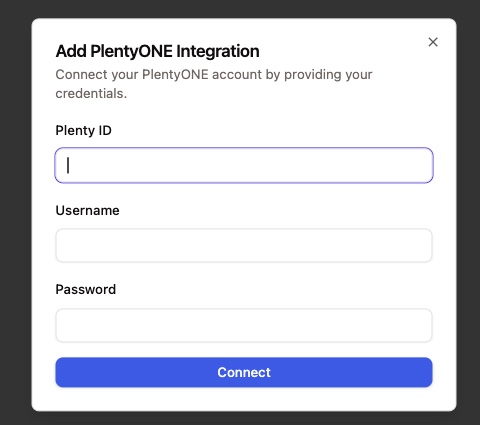
Click Connect → Add account. A dialog opens with three fields:
Plenty ID – the numeric ID of your PlentyONE account
Username – your API username in PlentyONE
Password – the corresponding API password
Fill in all three fields and click Connect.
4. Confirm the connection
The integration is active once PlentyONE shows as connected in the integrations list.
How to use
Inbox widget
A widget appears on the right side of your inbox whenever a conversation can be matched to a contact who has an existing PlentyONE order. The widget displays order number and status, invoice information, and related customer data. The AI can use this data automatically when generating reply suggestions (AI Draft).
Workflows
PlentyONE actions can be triggered inside workflows to answer customer questions automatically. The AI uses the retrieved data to compose a response.
Available actions:
Get Order – retrieves order details for a given order
Get Invoice – retrieves the invoice for a given order
Notes
Make sure the API user in PlentyONE has at least read access to orders and invoices. Missing permissions will prevent the widget from loading data.
Combine the Get Order workflow action with an AI step to fully automate order status inquiries.
The inbox widget becomes visible per ticket as soon as the contact's email address is linked to an order in PlentyONE.
If you operate multiple shops or clients in PlentyONE, verify that the API user has access to all relevant order data.