Gmail Ticket Migration
Gmail Ticket Migration to ArminCX
To ensure a smooth transition and preserve your support history, please scope your Gmail migration with your Account Manager before import.
🔎 Why this matters
Your full ticket history is preserved in ArminCX from day one
A clear data scope keeps the import fast and clean
Older tickets add volume but little daily-support value
Your team hits the ground running — no missing context
🫵 Best practice for your migration scope
Limit the import to the last 12 months — that's our standard
Export ticket data with: customer email, subject, message content, and timestamps
Confirm the exact time range with your team before sending us the data
What we need from you
A data export containing:
customer email address
subject line, message content
timestamp
that's it.
⚙️ How to set it up
1. How to export your Gmail data
The easiest way is via Google Takeout — Google's free built-in export tool.
a) Go to takeout.google.com and sign in

b) Click Deselect all, then scroll down and tick Mail only

c) Click Next step → choose "Send download link via email" as the delivery method → click Create export

d) Google will email you a download link once the export is ready (can take a few minutes to a few hours depending on mailbox size). Download the file and share it with your Account Manager.
For more details, see Google's official guide.
2. Connect your Gmail channel correctly
Before the import, make sure your Gmail channel is properly connected — otherwise incoming messages won't arrive in ArminCX even if they land in Gmail.
a) Go to Channels → E-Mail — you'll see all connected email accounts listed
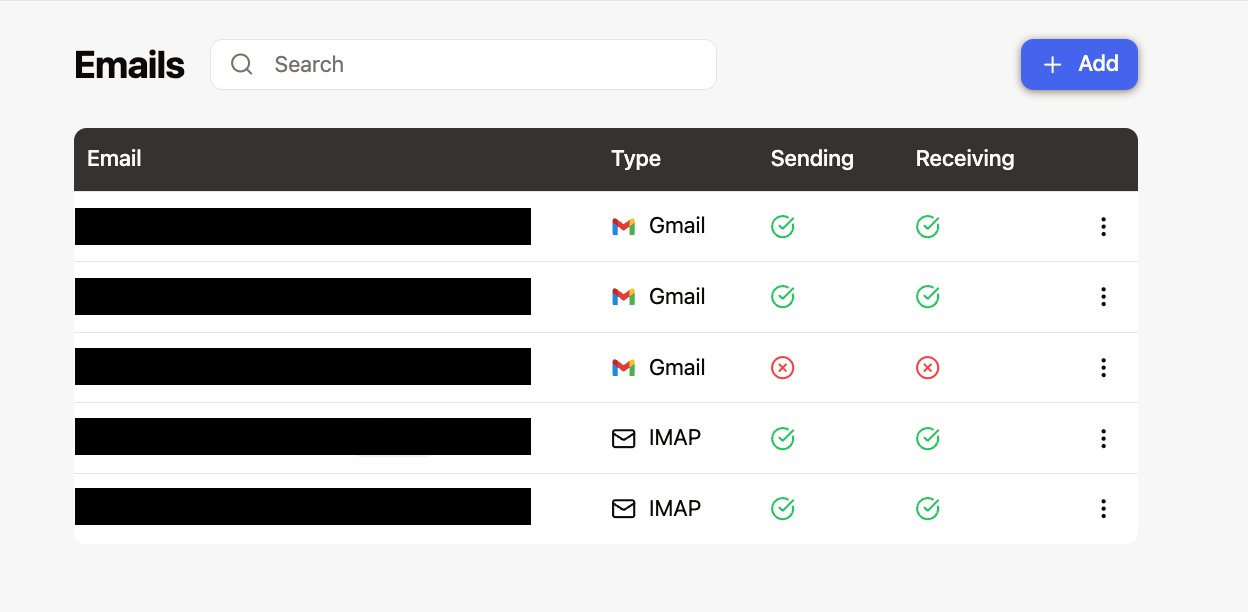
Both Sending and Receiving must show a green checkmark ✅ for the relevant account. If either is missing, proceed with the next steps.
b) Click the anywhere on the affected account. It leads to the email account settings → select Reconnect
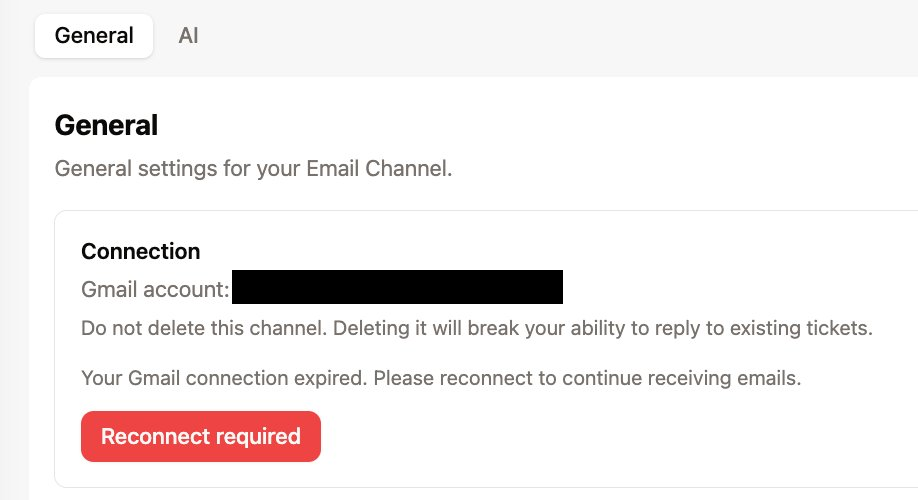
c) In the Google permissions popup, make sure all checkboxes are ticked
d) Save and send a test email to confirm messages are arriving. Done! ✅
3. Send us the data & we handle the rest
Share the export file with your ArminCX contact. Our team runs the import — typically within a few days. Your historical tickets will appear directly in ArminCX.