
Workflows
Here you will find out when & where to use Workflows
Main Benefits
Handle complex automations like Fetching Invoices, Updating Shipping Address, …
Can be triggered through AI (more here) or manually in Tickets
Where to find?
Under Workflows
Before we go more into Detail, here we show a Workflow Demo if you want to check it out:
Channels
The goal is to use 1 Flow for ALL Channels. Currently Workflows work with:
Email
Web Widget
WhatsApp
and all Socials
How to Trigger?
With AI
Similar to Handover Topics or Auto Tagging, you can give the AI the capability to trigger your Workflows based on your Description or Message- and Ticket-Based Events.
Here’s a Video on the different Trigger-Types:
Manually in Tickets
For triggering Flows in Tickets manually, you will NEED to publish your Flow to take the latest changes. Watch here to see in action:
Execution Mode
When setting up your workflow, you can choose how it should run:
🛡️ With Approval (Supervised)
Workflow will pause and require your approval before sending any messages
Gives you full control over what gets sent to customers
Perfect for sensitive operations or when you want to review responses first
Shown with orange styling and security icons in the UI
⚡ Automatic (Autonomous)
Workflow runs completely automatically without interruption
Messages are sent immediately without waiting for approval
Faster execution but less control over individual messages
Ideal for routine tasks and trusted automations
You can configure this setting when creating or editing your workflow. The choice depends on your comfort level with automation and the sensitivity of the workflow’s actions.
Watch Explanation Video:
How to Test
You can basically simulate a Ticket Conversation by just clicking “Test Flow” in the top right of the Flow-Builder:
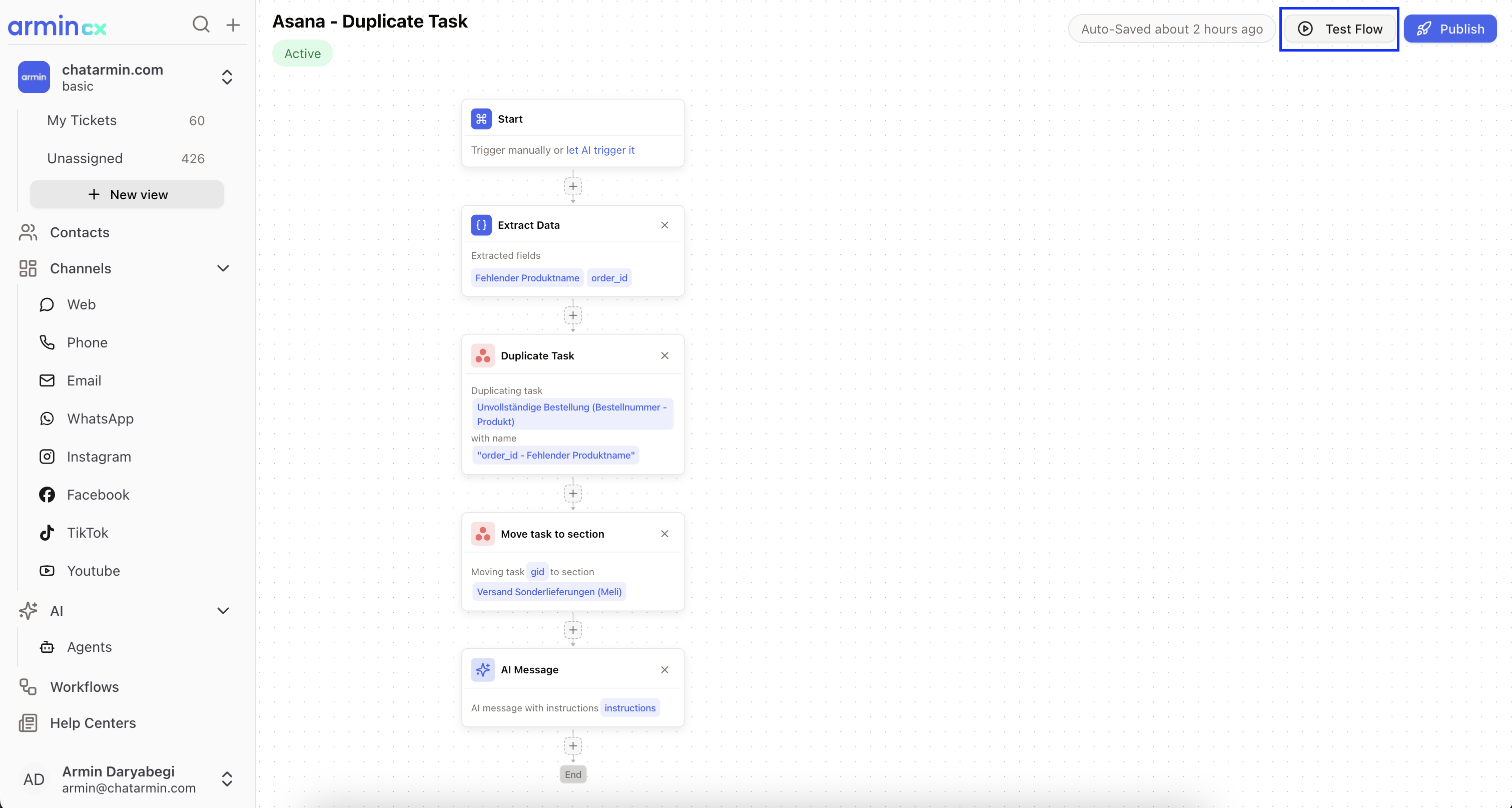
This will take your current Flow Changes. You do NOT have to publish your changes when you test flows